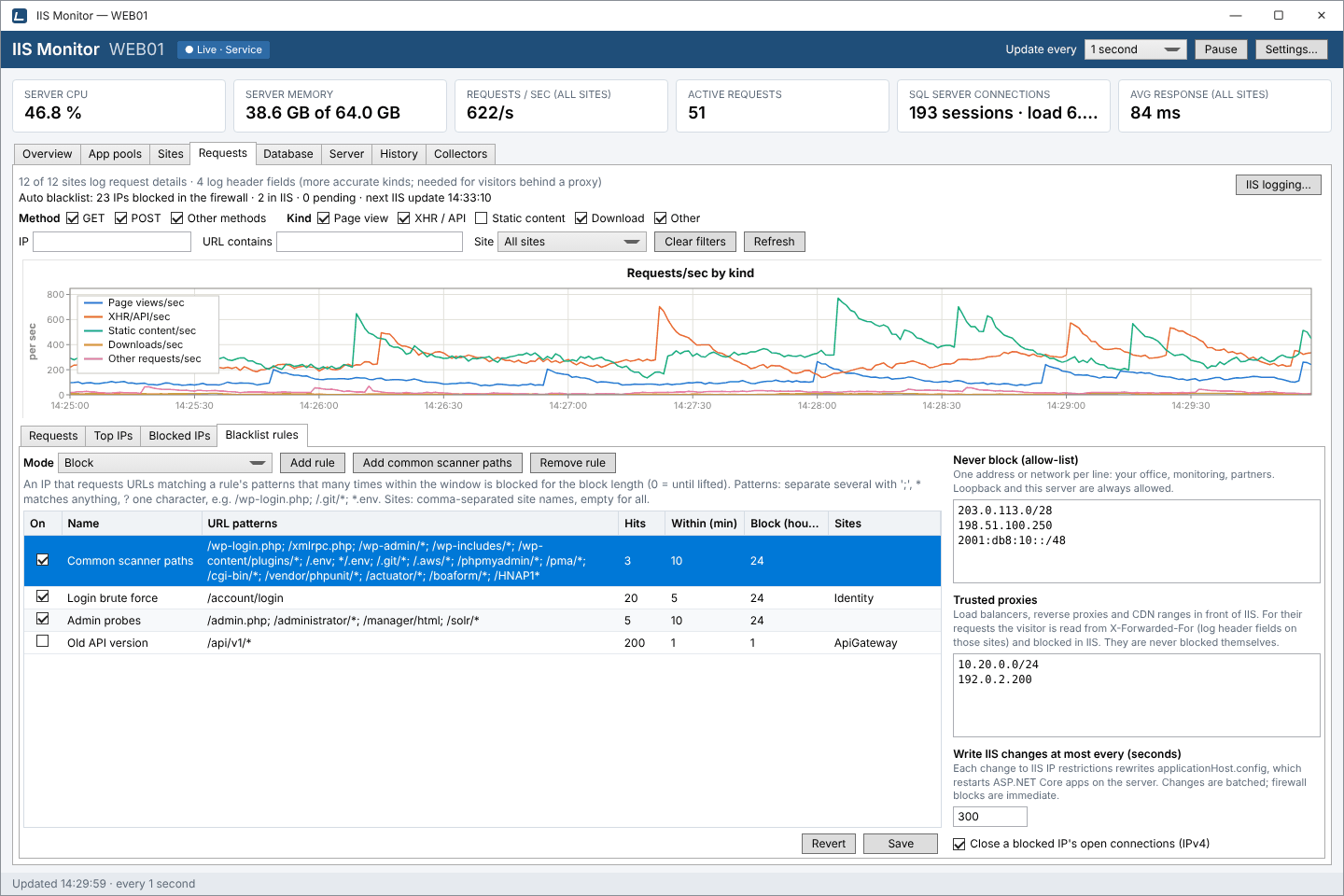
How a rule works
A blacklist rule says: when an IP requests URLs that match these patterns X times within N minutes, block it for H hours. For example, three requests within ten minutes to /wp-login.php; /xmlrpc.php; /.env; /.git/* on a site that has none of those files is a vulnerability scanner, never a customer.
Rules live on the Requests tab, under Blacklist rules. Each row is one rule:
- On
- Untick to keep a rule without enforcing it.
- Name
- Shown in the request list's Rule column and in the reason for each block.
- URL patterns
- One or more URL paths, separated by
;. - Hits
- How many matching requests trigger a block (3 by default).
- Within (min)
- The time window those hits must fall in (10 minutes by default).
- Block (hours)
- How long the block lasts (24 hours by default). 0 means until you lift it.
- Sites
- Comma-separated site names to limit the rule to. Empty means all sites.
Use Add rule and Remove rule to edit the list, then Save. Revert throws away unsaved changes.
Pattern syntax
- Patterns match the URL path, without the query string, ignoring case.
*matches anything, including/;?matches one character.- Examples:
/wp-login.php,/.git/*,*.env,/admin/*.
To keep real visitors safe, patterns that would catch ordinary traffic, such as /* or anything that matches the home page, are refused when you save. A rule that blocks after a single request gets a warning: a typo or an old bookmark would be enough to block a real visitor.
Add common scanner paths
Add common scanner paths adds one ready-made rule listing paths that only vulnerability scanners ask for: WordPress (/wp-login.php, /xmlrpc.php, /wp-admin/* and more), .env files, /.git/*, /.aws/*, phpMyAdmin, /cgi-bin/*, PHPUnit, Spring Boot's /actuator/* and common router exploits. Use it only if none of your sites serve any of these.
Off, Watch only or Block
The Mode box above the rules decides what happens when an IP trips a rule:
- Off
- Rules aren't checked.
- Watch only
- Rules are checked, and IPs that would be blocked are listed as Watch: would be blocked, but nothing is blocked. Use it to try new rules on real traffic.
- Block
- IPs that trip a rule are blocked.
How an IP is blocked
IIS Monitor picks the right tool for each visitor.
Direct visitors: Windows Firewall
A firewall rule in the group “IIS Monitor” (up to 1,000 addresses per rule) drops all of the IP's traffic, on every port. Its open IPv4 connections are closed too, unless you turn that off. Firewall blocks take effect at once.
Behind a proxy or CDN: IIS IP restrictions
When the visitor comes through a trusted proxy, blocking the proxy's address would block everyone. Instead, IIS Monitor adds a deny entry to IIS IP restrictions in proxy mode, where IIS also checks X-Forwarded-For.
Blocking through IIS needs the IP and Domain Restrictions role service: Install-WindowsFeature Web-IP-Security. Because every change to IIS IP restrictions rewrites applicationHost.config, which restarts ASP.NET Core apps on the server and uses up one of the configuration history snapshots IIS keeps, IIS changes are batched: at most every 5 minutes by default, set by Write IIS changes at most every (seconds).
IIS Monitor is careful with your IIS configuration:
- It turns on proxy mode itself only when no other IP restrictions exist. Proxy mode also applies existing rules to the addresses in
X-Forwarded-For, so on a site that only lets its CDN in, it could lock visitors out. In that case the Blocked IPs list says so and you decide. - It never removes or changes entries it didn't add, and never puts a deny above an allow entry that covers the address.
- It doesn't write to IIS Shared Configuration.
- It never blocks private addresses (
10.x,192.168.x…) found inX-Forwarded-Forin IIS, since other visitors' requests can pass through them.
Who is never blocked
- Loopback and the server's own addresses.
- Your allow-list: addresses and networks you enter, one per line, such as your office, monitoring service or partners.
- Your trusted proxies.
Requests IIS has already turned away, such as 403.503 from an IP restriction, don't count toward a rule again.
Trusted proxies
Enter the addresses or ranges of the load balancers, reverse proxies or CDN in front of IIS under Trusted proxies, and log header fields on those sites (Set up IIS logging). For their requests, IIS Monitor takes the visitor to be the right-most address in X-Forwarded-For that isn't a trusted proxy, so a client can't name someone else by adding a fake address of its own. X-Forwarded-For from anyone else is ignored.
The Blocked IPs list
 View full size
Blocked IPs lists current blocks, and, with Show lifted and expired ticked, past ones too:
- State
- Blocked (firewall), Blocked (IIS), Blocking…, Waiting for the next IIS update, Watch: would be blocked, Lifted or Expired. Not blocked: …, in red, says what went wrong, for example the firewall being off for the active profile; failed blocks are retried every minute.
- How
- Firewall or IIS (proxy).
- Why
- The rule and its hit count, or “By hand” and your note.
- Since, Ends
- When the block started and when it ends: “in 23 h”, “in 6 days” or “never (until lifted)”.
- Site, URL
- The site and URL of the request that triggered it.
Blocks are stored in the history database. They survive restarts and expire on time even while the service is stopped. Select one and click Unblock to lift it at once.
Block an IP by hand
 View full size
Click Block an IP… on the Blocked IPs list, or Block this IP… on a request or a Top IPs row, then choose:
- For how long: 1 hour, 24 hours, 7 days, 30 days or until you unblock it.
- How: automatic (the firewall, or IIS if the visitor came through a trusted proxy), Windows Firewall, or IIS IP restrictions.
- Note: an optional reason, shown in the Why column.
How to use it: roll out rules safely
- Make sure every site logs request details (Set up IIS logging), and header fields on sites behind a proxy.
- Enter your office and monitoring addresses in the allow-list, and your load balancer or CDN ranges under trusted proxies.
- Add rules: Add common scanner paths, plus your own, such as 20 POSTs to
/account/loginwithin 5 minutes. - Set Mode to Watch only and click Save. Leave it running for a day.
- Check Blocked IPs: every Watch: would be blocked entry should be someone you are happy to block. If not, tighten the rule.
- Switch Mode to Block and save.
Blocking is done by the IIS Monitor Windows service. When the dashboard runs on its own (standalone mode), it shows requests and rules but doesn't block.